Collect monitoring metrics and interpret threshold alarms
Inspect fresh memory metrics and change a tutorial threshold to observe health-state changes.
Audience and outcome
For users configuring health checks who need to distinguish collection completion, metric health and alarm severity.
Before you start
Complete the shared preparation, then prepare the resources below.
| Resource | Requirement |
|---|---|
| Agent | A dedicated test Agent/token, reachable only by permitted clients, with available memory metrics. |
Configuration
| Field / setting | Example value |
|---|---|
| Collection | CPU, MEMORY and DISK |
| Baseline thresholds (warning / critical) | CPU 85% / 95%; memory 85% / 95%; disk 90% / 97% |
| Notifications | Disabled initially |
Steps
1. Create and test the monitor resource
Start a dedicated Agent according to the deployment guide and record its address/port and independent token. Create/test a monitoring-server resource.
2. Configure one collection
Create SERVER_MONITOR with the resource, CPU/MEMORY/DISK collection and the thresholds in the table. Disable notifications, save and run manually.
3. Inspect data and health variables
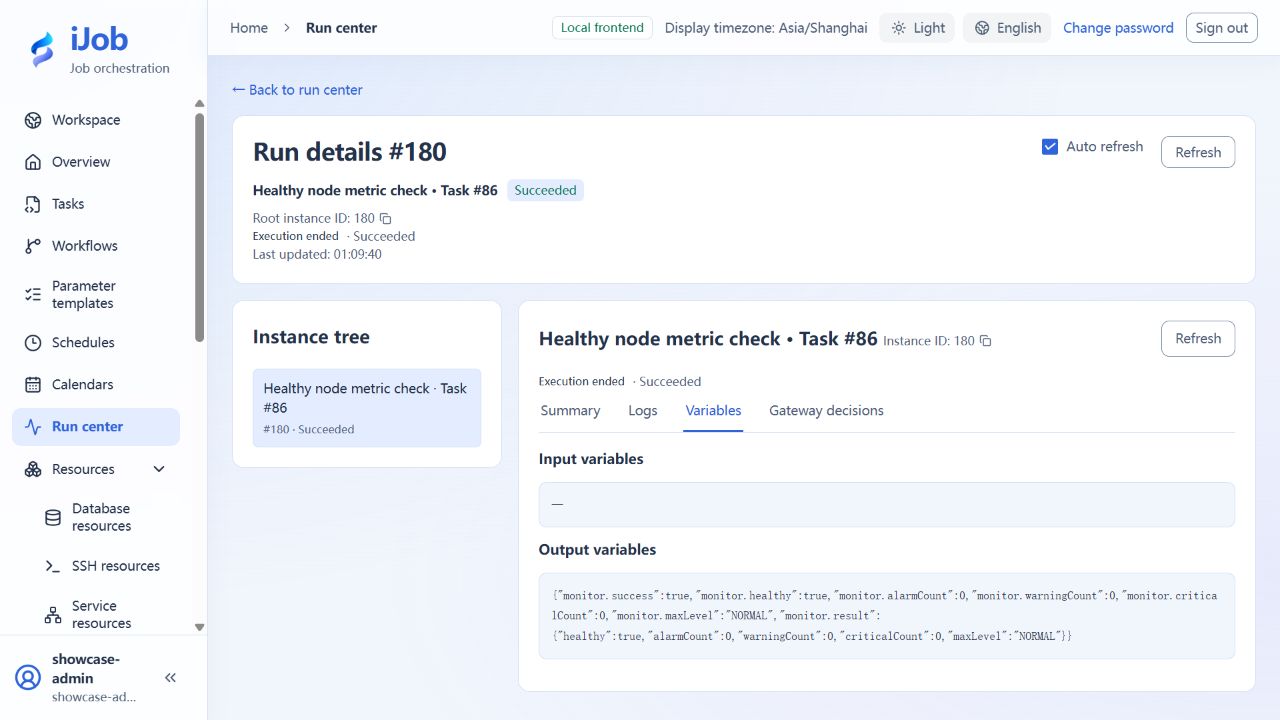
Inspect collection time, freshness, percentage units and monitor.healthy/alarmCount/warningCount/criticalCount. SUCCESS means collection completed; health depends on measured values and thresholds.
4. Create an alarm by changing the threshold
Keep the baseline task and create a copy with memory warning/critical thresholds of 1%/2%; leave other rules unchanged. When current memory usage is above 2%, this rule should produce CRITICAL. Inspect healthy=false, criticalCount and the total alarm count without adding host load.
Create another copy for the healthy branch, temporarily setting CPU, memory and disk usage warning/critical thresholds to 99.9%/100%, with notifications disabled. When all three actual metrics are below their warning thresholds, expect healthy=true, alarmCount=0 and maxLevel=NORMAL. These relaxed values demonstrate the healthy branch; set production thresholds from your own capacity baseline.
Compare the copies: the baseline may already show WARNING, lower thresholds can produce CRITICAL, and relaxed thresholds can produce NORMAL. All three tasks can complete with SUCCESS.
5. Optional: distinguish unavailability from an alarm
Use an incorrect token in a copy, or normally stop the tutorial Agent before running. Expect connection/collection failure rather than a fabricated 0 usage value. Restore the Agent and run again.
Expected results
| Check | Expected value |
|---|---|
| Collection completes | Instance SUCCESS, fresh timestamps and correct units; no zero substituted for missing data |
| Baseline health | Depends on actual metrics and thresholds; SUCCESS may already have healthy=false and a WARNING |
| Lower thresholds | Crossing a threshold yields healthy=false and matching counts/severity; crossing a critical threshold gives maxLevel=CRITICAL |
| Healthy-branch copy | When every enabled rule is satisfied: healthy=true, alarmCount=0 and maxLevel=NORMAL; this does not send a recovery notification |
Common failures
| Symptom | Action |
|---|---|
| SUCCESS with an alarm | Collection success and health differ; inspect monitor.healthy. |
Receiving service checks
In the order reconciliation and report delivery environment, connect SCRIPT → SERVER_MONITOR to check the receipt service first, then inspect its node's CPU, memory, and disks. Applies to iJob 1.0.0. The script below targets a Windows Worker with PowerShell installed.
1. Prepare the receiver and monitoring resource
Keep the order tutorial's receipt receiver running. Follow standalone Agent configuration to prepare your own Monitor Agent, port, and authentication token. Create an enabled monitoring-server resource:
| Field | Value |
|---|---|
| Name | Local practice node |
| Protocol / endpoint | HTTP / your Agent address; on the same machine, use http://127.0.0.1:<agent-port> |
| Authentication token | The token you configured for this Agent |
| Connect / read timeout | 5000 / 10000 milliseconds |
| Operating system / Agent version | WINDOWS / 1.0.0 |
The receipt receiver and Monitor Agent are different services; do not interchange their addresses or ports. This example places the Worker, receiver, and Agent on the same machine. For other topologies, configure addresses reachable from the relevant node.
2. Configure the health-check task
Create the SCRIPT task “Check receiving service health”: execution mode LOCAL, engine POWERSHELL, UTF-8 script and output encoding, a common timeout of 30 seconds, and retry count and interval both 0. Replace <receipt-port> below with the order receiver's actual port, then save:
$ErrorActionPreference = 'Stop'
$r = Invoke-RestMethod -Uri 'http://127.0.0.1:<receipt-port>/health' -TimeoutSec 5
if ($r.status -ne 'ok') { throw 'Health check failed' }
Write-Output 'Delivery service: healthy'
Write-Output ('Receipt records: ' + $r.receiptCount)
The request runs on the Worker. Successful logs contain Delivery service: healthy and the current receipt-record count. The count depends on your completed deliveries and is not a fixed value. A connection failure or a status other than ok fails the script, so the downstream node does not execute.
3. Configure resource monitoring and connect the job
Create the SERVER_MONITOR task “Inspect node resources”:
| Field | Value |
|---|---|
| Monitoring server | Local practice node |
| Collection items | CPU, MEMORY, DISK |
| CPU rule | Enabled; warning 85%, critical 95% |
| Memory rule | Enabled; warning 85%, critical 95% |
| Disk rule | Enabled; warning 90%, critical 97% |
| Application collection / disk path overrides | None |
| Send monitoring alerts | Disabled |
| Common timeout / retry count / retry interval | 30 seconds / 0 / 0 |
Save the task. Create “Receiving service health and resource checks” with health referencing the health-check task and monitor referencing resource monitoring. Connect health → monitor, using ALL_SUCCESS / STOP. Enable, validate, save, and publish, then execute manually. This job does not need a business-date parameter.
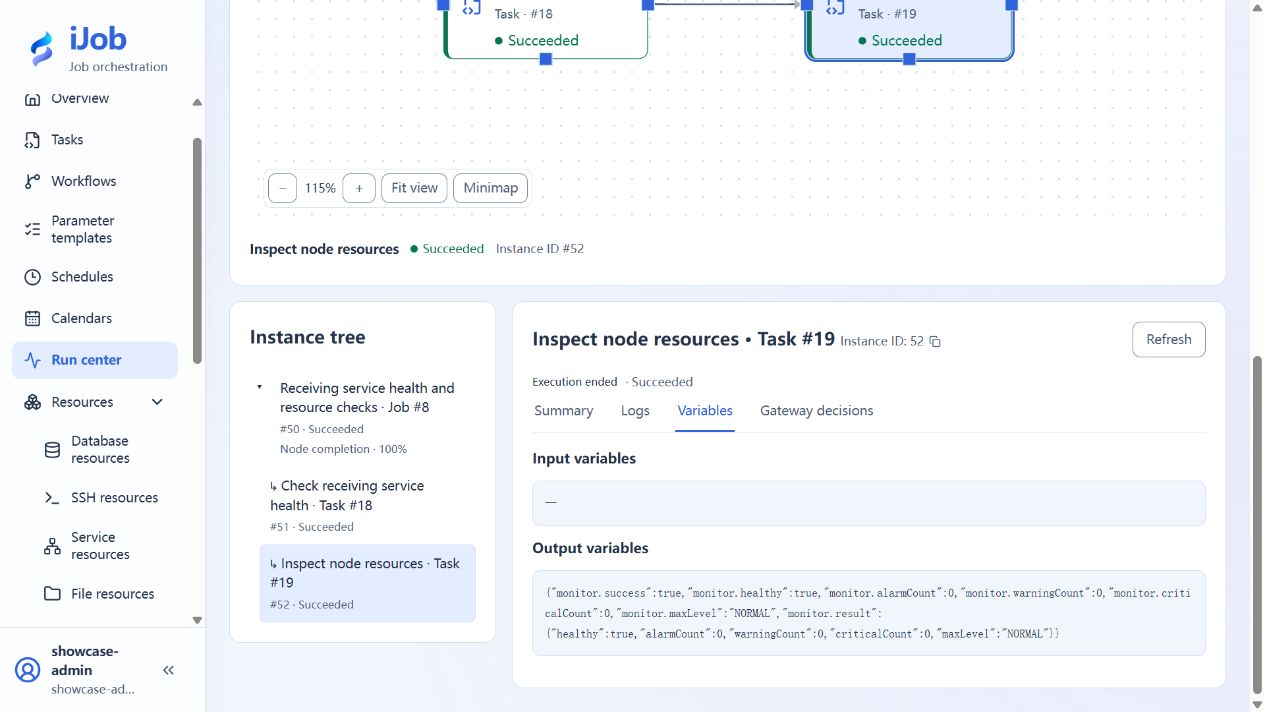
4. Interpret availability and resource health
| Check location | Interpretation |
|---|---|
health logs |
Service status is ok; logs include the health message and current receipt-record count |
monitor metrics |
CPU, memory, and disks have current measurements, with correct percentages and timestamps |
monitor.healthy |
Expect true only when the collected values satisfy your rules; do not copy metric values from a screenshot |
| Alarm counts | Inspect monitor.alarmCount, monitor.warningCount, and monitor.criticalCount against the threshold results |
| Root run | SUCCESS when both tasks complete; distinguish resource threshold alarms from failed collection |
This example sends no notifications and creates no recurring schedule. Do not raise production thresholds simply to obtain a green status. Retire this section's job and tasks when finished. Stop only the Agent you prepared for this exercise and that nobody else is using; keep the order receiver until its other exercises are complete.
Safety and cleanup
Disable tutorial schedules/notification bindings, restore thresholds and stop only the tutorial-created Agent.
Version and limitations
Applies to 1.0.0 Agent collection and NORMAL, WARNING and CRITICAL health levels. Host load changes health results; relaxed demonstration thresholds are not production recommendations. Wrong tokens and an unreachable Agent are optional extensions. Notification delivery needs a separate receiver; recovery notifications and cross-run alarm deduplication are not supported.
The following image shows the actual tutorial run: