Run a script and distinguish success, failure and stop
Use three harmless scripts to distinguish trigger acceptance from actual execution results.
Audience and outcome
For first-time script users who need to distinguish success, nonzero exit, stop and timeout.
Before you start
Complete the shared preparation, then prepare the resources below.
| Resource | Requirement |
|---|---|
| Worker | The main steps use Windows PowerShell with the POWERSHELL engine. BAT and Linux SHELL require their own syntax and interpreter. |
Configuration
| Field / setting | Example value |
|---|---|
| Execution mode | LOCAL |
| Retries / timeout | 0 / 60 seconds |
| Success script | Use the copyable code below |
Steps
1. Create and publish the success task
Create SCRIPT named docs-hello with LOCAL execution and the POWERSHELL engine. Set script/output encoding to UTF-8, retries to 0 and timeout to 60 seconds:
Write-Output 'hello-ijob'
Write-Output '__VAR__:greeting=hello'
exit 0
Saving publishes a version without running it. Values emitted with __VAR__: are strings; this example produces greeting="hello". For BAT or Linux SHELL, use the corresponding echo hello-ijob and exit 0 syntax and check that interpreter separately.
2. Run manually and inspect logs
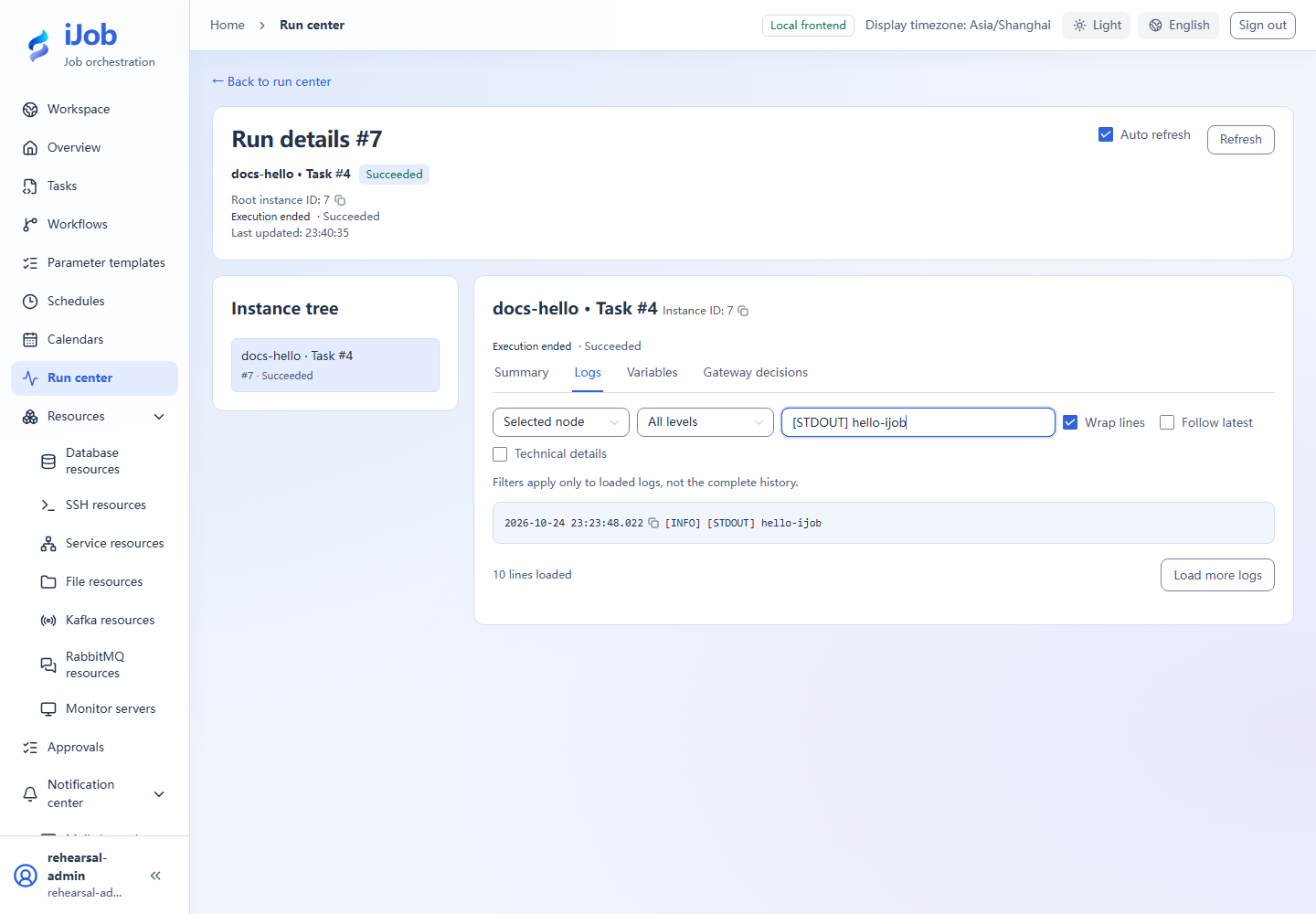
Trigger manually and confirm the input dialog. Open the run center, wait for SUCCESS and find hello-ijob in STDOUT plus the actual Worker.
3. Observe a nonzero exit
Create docs-failure with POWERSHELL, retries 0 and timeout 60 seconds:
Write-Output 'tutorial-failure'
exit 7
Save/publish and run manually. Expect FAILED; trigger acceptance and script success are separate results.
4. Stop a long-running task
Create docs-stop with POWERSHELL, retries 0 and timeout 120 seconds:
Write-Output 'started'
Start-Sleep -Seconds 45
Write-Output 'finished'
Save/publish and run. Once the instance is running and the log contains started, request stop. Wait for STOPPED and check that this run did not print finished; acceptance of the stop request is not completion.
5. Optional: inspect timeout and retries
In a separate copy, use Start-Sleep -Seconds 10, a task timeout of 2 seconds and retries 0. Run it and check TIMED_OUT.
Retries are a separate optional extension: set the nonzero-exit copy to one retry and inspect its attempts. Eligibility depends on the plugin result and cannot be inferred for HTTP errors from a script run.
Expected results
| Check | Expected value |
|---|---|
| Success | SUCCESS, hello-ijob in logs, and greeting as the string hello |
| Failure | FAILED with a nonzero exit |
| Stop | STOPPED after started; no finished output |
| Timeout copy | A 10-second wait with a 2-second task timeout reaches TIMED_OUT |
Common failures
| Symptom | Action |
|---|---|
| No instance | Inspect the trigger, Worker readiness and routing groups before retriggering. |
| Writes after stop | Stopping does not undo completed external effects; these scripts do not write business data. |
Safety and cleanup
Disable tutorial schedules if created, and remove unwanted practice tasks after active instances finish.
Version and limitations
Applies to 1.0.0. The main path uses Windows PowerShell for success, exit code 7, stop and a 2-second task timeout. BAT/Linux SHELL and automatic retries are separate extensions to check on their own interpreters.
Interface reference
These are actual interface references for this capability. Names and instance IDs may differ from your run; follow the steps and expected results for extensions.